
iPhone guide
Playing on iPhone
Every day Daily Exposure picks one of your own photos and hides it in a darkroom tray. This guide walks through a whole puzzle on iPhone, from the first guess to the framed print.
Playing on another device? iPad guide · Mac guide
- Step 1
Allow access to your photos
The first time you open Daily Exposure it asks to see your photo library — that’s where every puzzle comes from. Choose full access for the best puzzles; if you choose limited access, the app picks only from the photos you shared with it.The app also asks to add to your photos, which it needs only when you give a photo a title. Your photos never leave your device. Tips
Daily Exposure only picks photos that are more than 30 days old, so a brand-new library may need a little time.If you said no by mistake, tap Open Settings on the Photos Access Needed screen.
- Step 2
Meet today’s photo
Each day brings a new numbered puzzle. Daily Exposure chooses one photo from your library and lays it in the developer tray, where it starts out pale, soft and colorless — Photo developing...The choice isn’t random: screenshots, receipts and documents are skipped, “On This Day” anniversaries come up far more often, and the same place won’t turn up twice in two weeks. No photo repeats until you’ve played them all. Prefer only your best shots? Open Settings (the gear) and turn on Favorites only. Held upright, the photo sits at the top with the questions below it — scroll down to see them all. Turn the iPhone sideways to put them side by side. 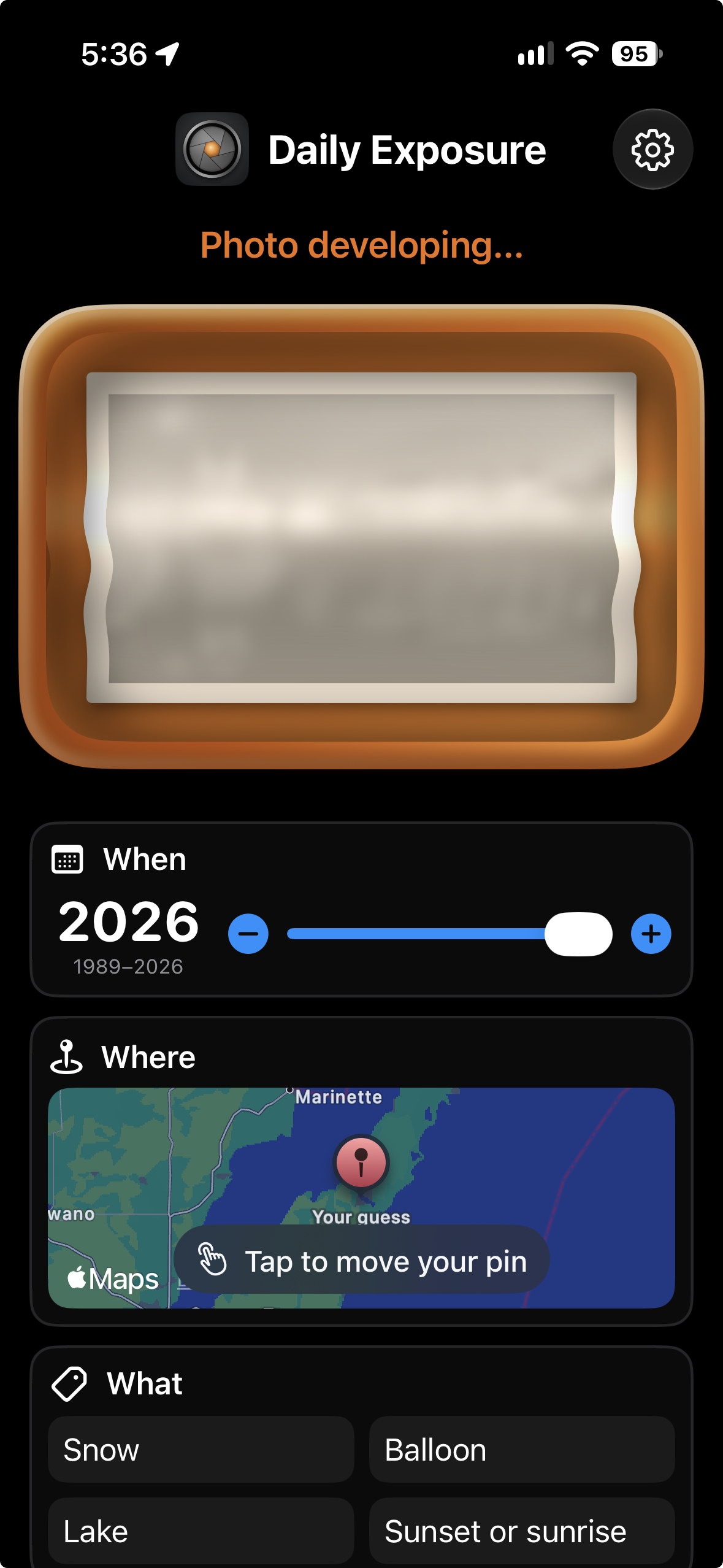
- Step 3
Guess when it was taken
In the When card, drag the slider to pick a year, or use the − and + buttons to step one year at a time. The range runs from the year of your oldest photo to this year. After each guess you get a hint: too early, too late, close (within a year) — or Right year! 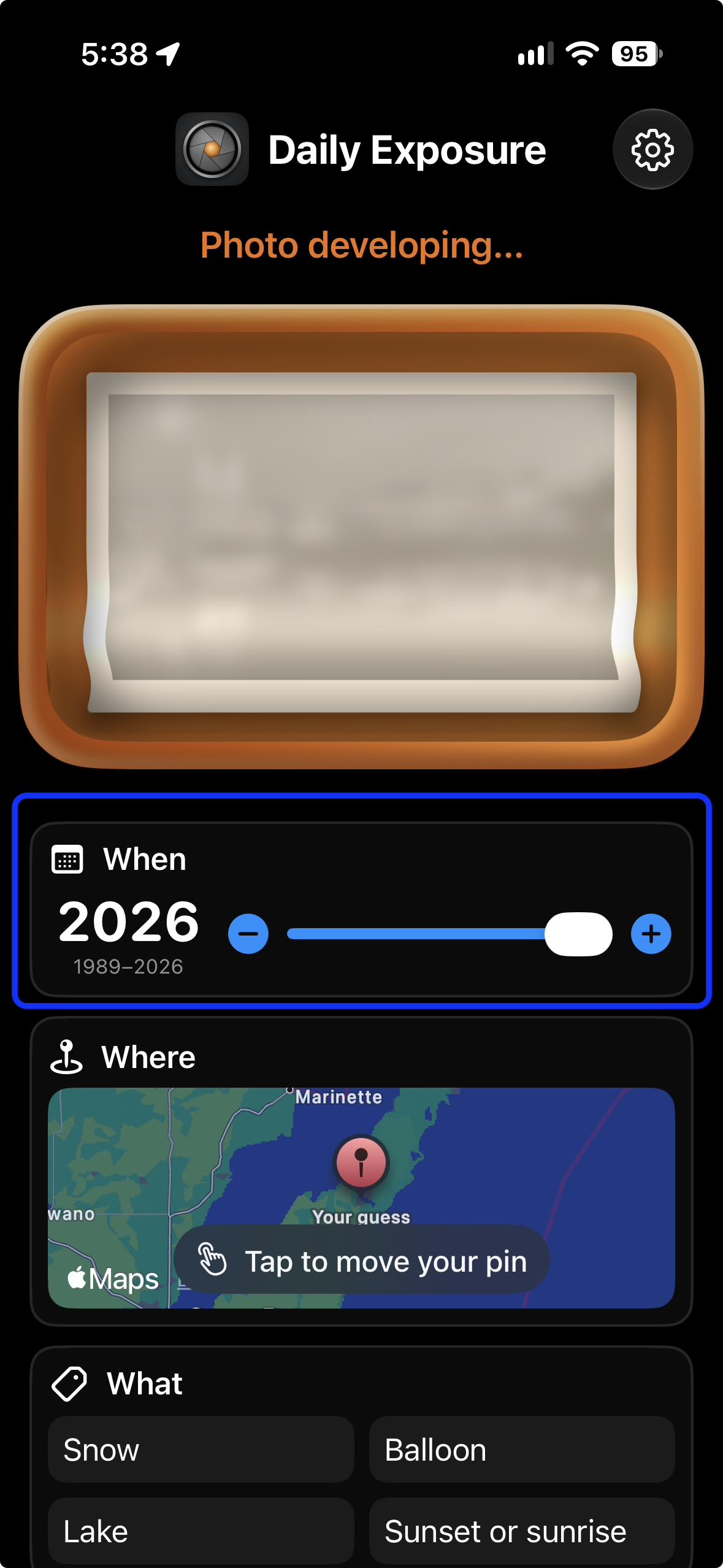
- Step 4
Pin where it was taken
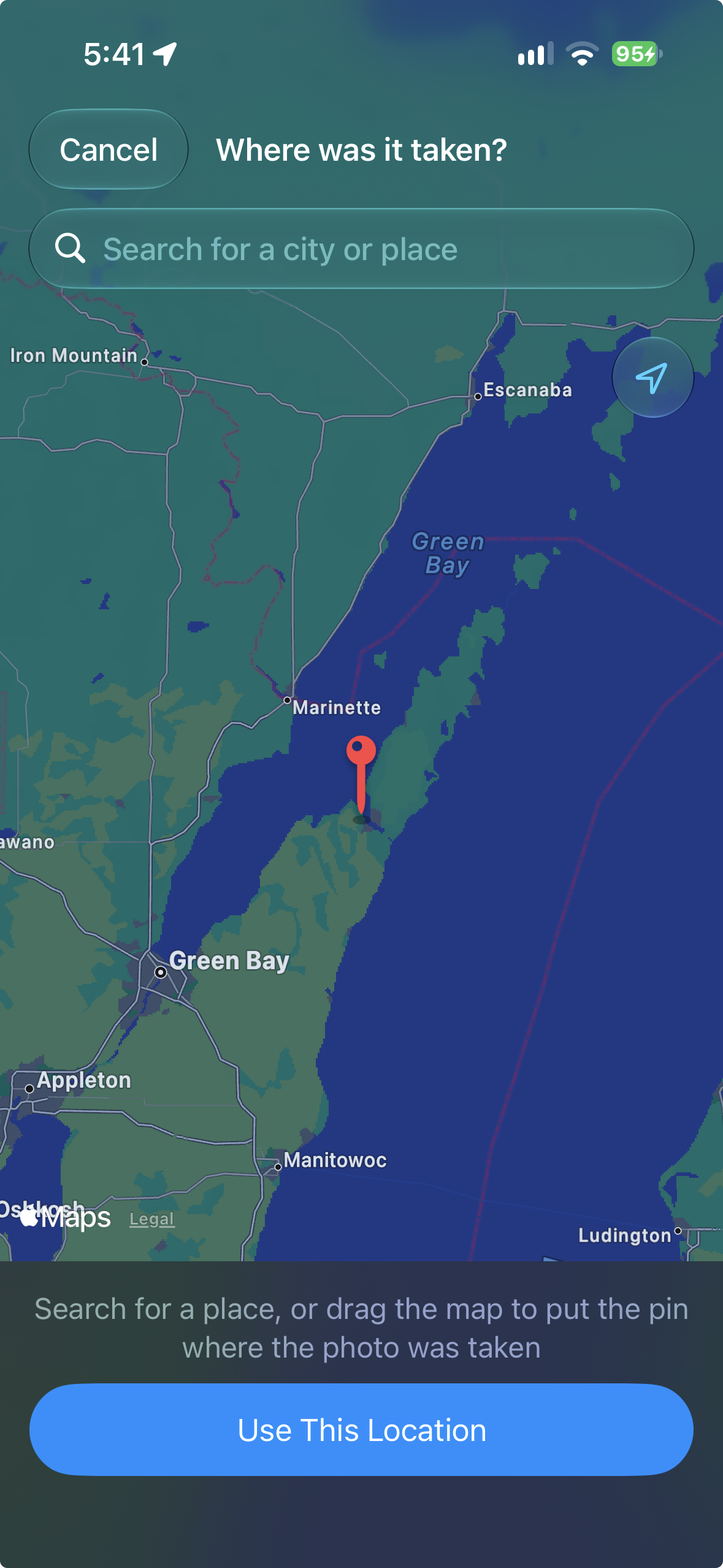
If the photo has a location, the Where card asks you to find it. Open the map, then search for a place or drag the map until the pin sits where you think the photo was taken, and choose Use This Location. Land within about 100 miles (160 km) and the card says Found it! with the distance. Distances are shown in miles or kilometers, following your region. Tap the map to open it full screen. If you allow location access, the map starts where you are; your location is never stored or shared. Tips
Photos without a location simply skip the Where question.
- Step 5
Say what’s in the picture
The What card offers four answers — a beach, a birthday cake, a ferris wheel, a dog. One is right; the others are chosen so they can’t also be true of this photo. The right answer comes from analysis that runs entirely on your device, across about 75 kinds of subject. 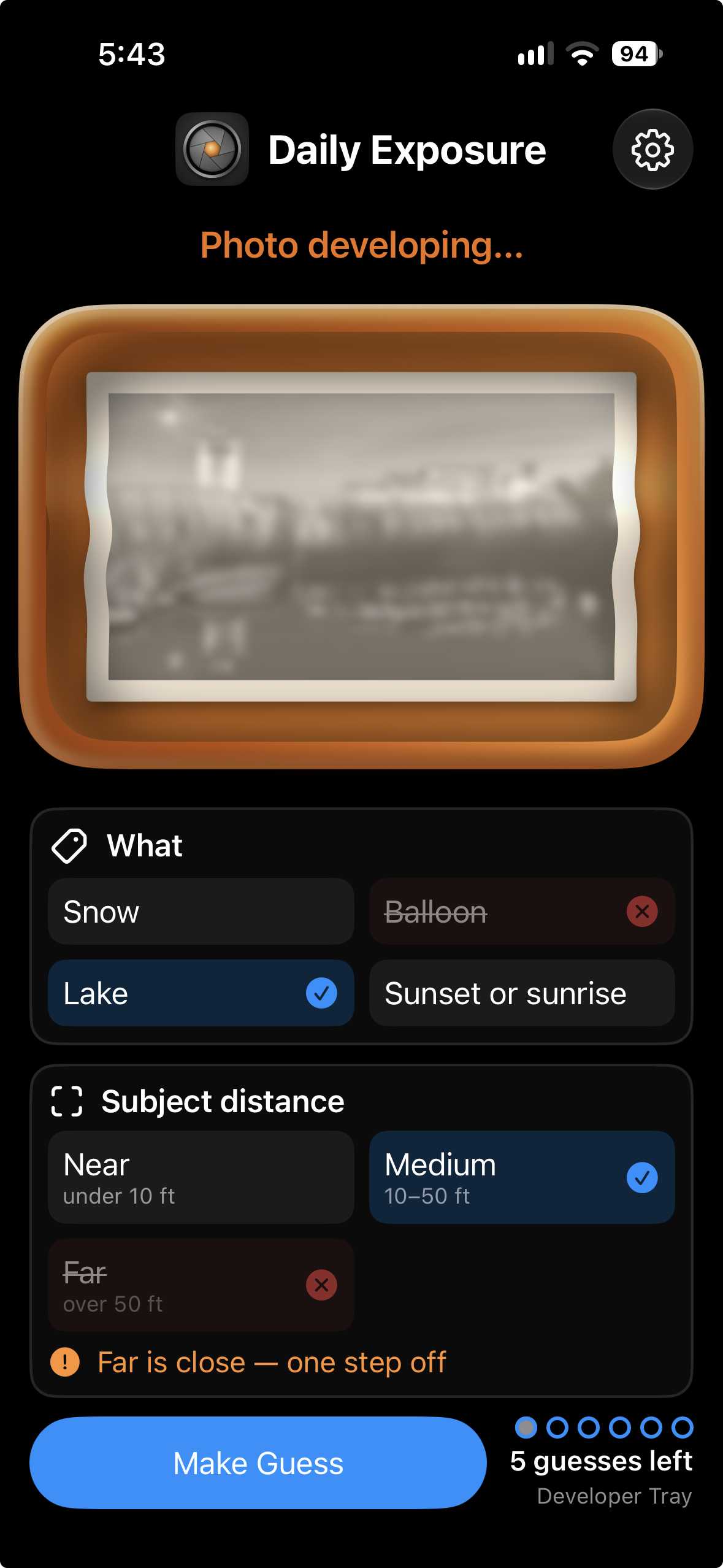
- Step 6
Count the people — or judge the distance
If there are people in the photo, the fourth card is Who: is it 1 person, 2 people, 3–4 people, or 5 or more? If not, it asks about distance instead: was the subject Near, Medium or Far? Each choice shows its range in feet or meters. - Step 7
Make a guess and watch it develop
When your answers are set, choose Make Guess. Questions you get right lock in with a check; the others get a hint, and the photo develops a little more — gaining density, sharpness and finally color. You have six guesses. The dots beside the button show how many you’ve used, and the last one reads Last guess! Tips
Fewer guesses means more points, so it can pay to study the photo before you commit.
- Step 8
See the framed print and your score
When the puzzle ends the photo comes up fully developed, in a polished metal frame with a beveled mat. The frame takes its color from the photo; black and white pictures get a classic gold frame. Solve everything and it’s a Perfect Exposure! You’ll see your points and your 🔥 day streak. Want to enjoy the picture without the controls? The photo button hides everything else so the framed print fills the screen. 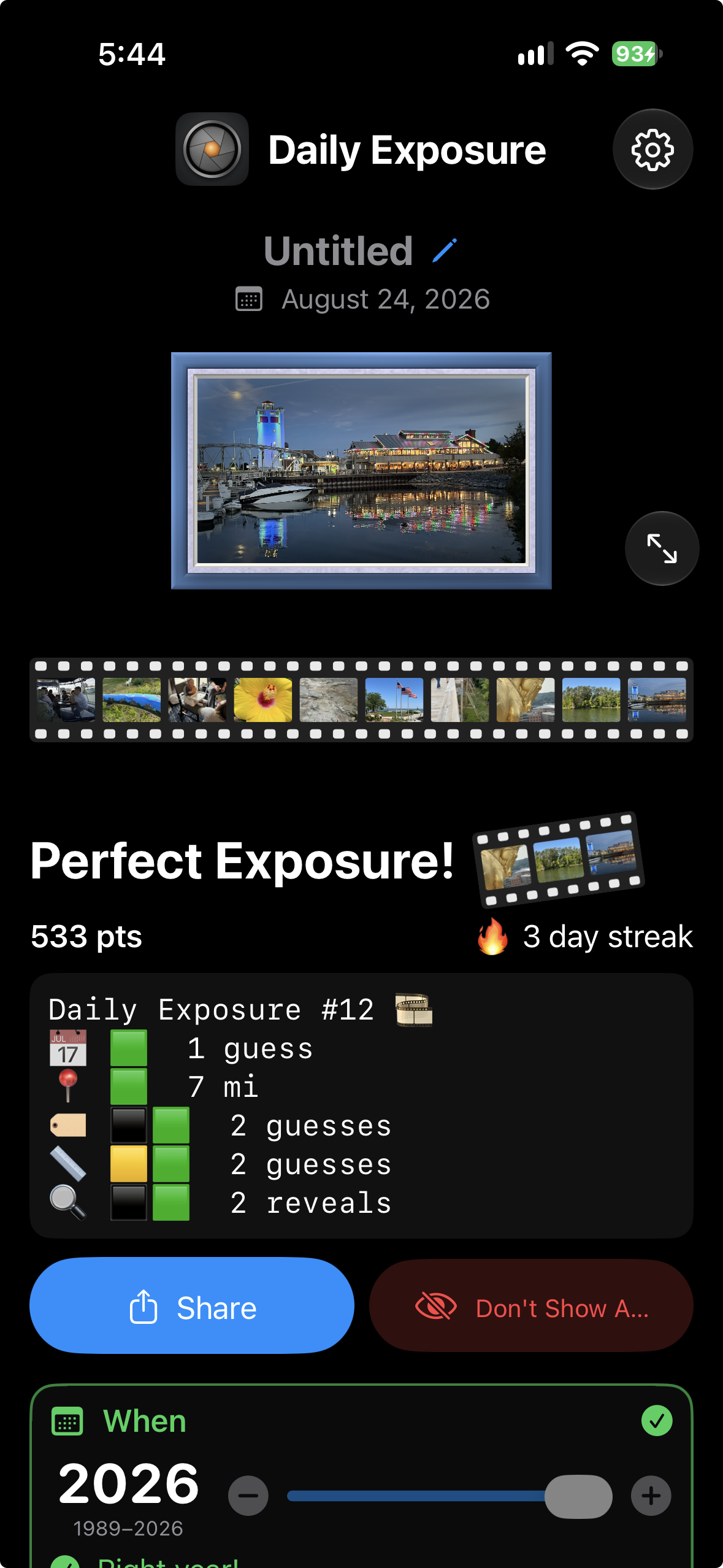
- Step 9
Share your score, not your photo
Choose Share to send your result. The share text uses colored squares for each question and how many guesses it took — no photo, place names or dates — so friends can compare without seeing your memories. 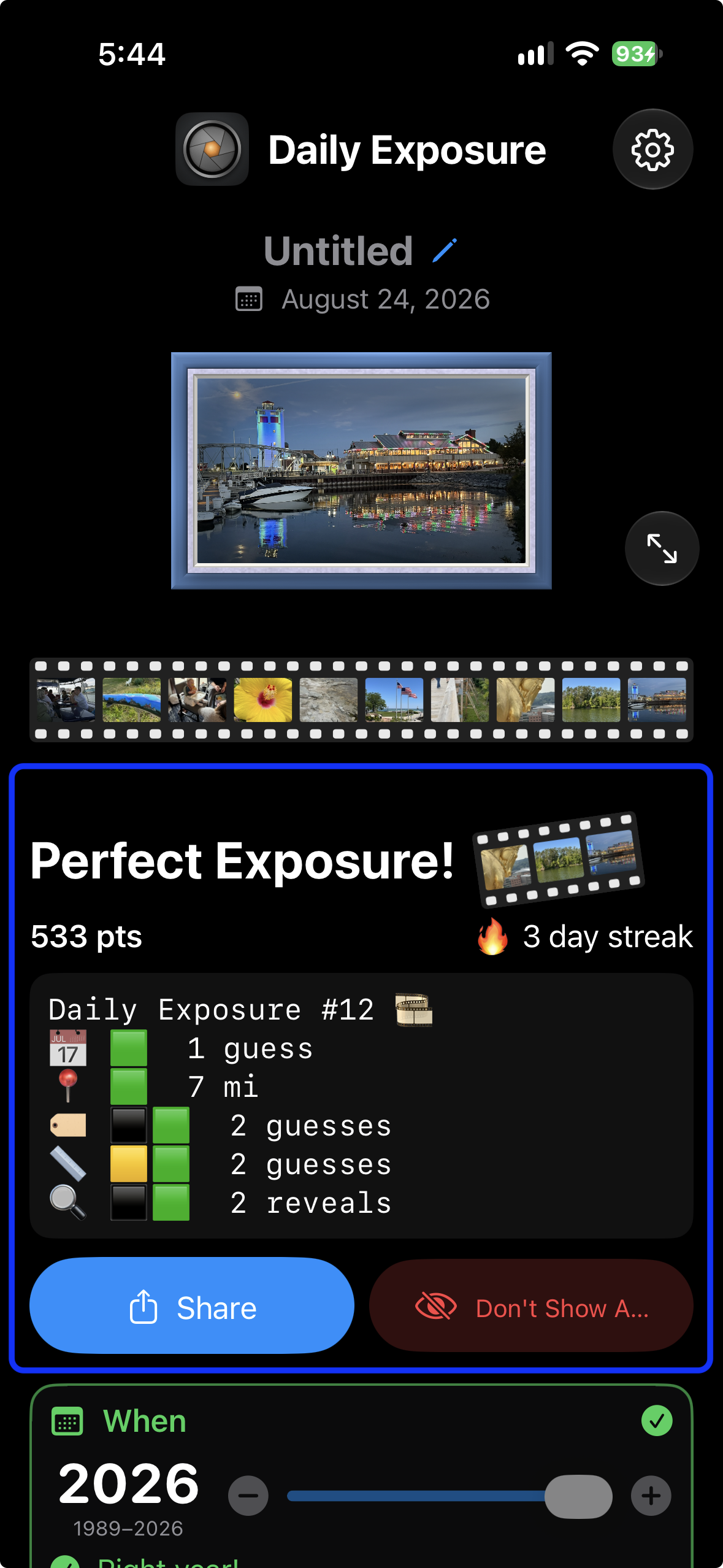
- Step 10
Look back with the filmstrip
Under the framed photo, a strip of 35 mm film holds your last ten puzzles. Choose any frame to see that day’s photo again, framed. Tap a frame to open the photo full screen; tap Close to come back. - Step 11
Fix a wrong answer — and get a bonus play
On-device analysis is good, but not perfect. If the What answer was wrong, choose Answer wrong? Correct it and pick the right subject, or Other — type your own… to enter anything you like. Your correction is saved for that photo and used next time it comes up. Because you had to fix an answer, you also get a bonus puzzle: You get another play today! Choose Play Again to start it. - Step 12
Give the photo a title
Rediscovered a favorite? Type a title under the finished photo and save it. Daily Exposure writes the title into the photo’s own metadata in your library — Saved into the photo’s metadata — and the Photos app keeps your original.Tips
Live Photos are left untouched, so they keep their motion.
- Step 13
Keep a photo out of future puzzles
Some pictures you’d rather not see again. Choose Don’t Show Again on the result screen and that photo won’t be picked for future puzzles. Change your mind with Show Again.
That’s a wrap — see you tomorrow.
Questions we didn’t cover? The FAQ has more answers, and you can always send us a message.